Slicing & Print Preparation
Choose the orientation, supports and settings that turn a model into a printable job.
What does a 3D printing slicer do?
Slicing is the translation layer between design intent and machine execution. The slicer takes 3D geometry and converts it into layer-by-layer toolpath instructions (G-code).
The Slicing Process
- 1Import: Load the 3D model
- 2Position: Orient on virtual build plate
- 3Configure: Set parameters
- 4Generate: Calculate toolpaths
- 5Export: G-code ready for printer
What the Slicer Calculates
- Perimeter paths (outer walls)
- Infill patterns and density
- Support structure generation
- Travel moves
- Temperature changes
- Retraction sequences
Key Insight: The same model with different slicer settings can produce dramatically different outcomes.
Slicer Software Overview
Different slicers serve different needs. Understanding your software's capabilities is essential before diving into settings optimisation.
Bambu Studio
Optimised for Bambu Lab printers with excellent default profiles. Native integration with Bambu Lab cloud services and AMS (Automatic Material System).
OrcaSlicer
Community fork with advanced features and multi-brand support. Includes additional calibration tools and experimental features not found in stock Bambu Studio.
Other Slicers
PrusaSlicer, Cura, Simplify3D — Check the current documentation for the matching machine profile and setting names.
Recommendation: Master one slicer deeply before switching. Our documentation assumes Bambu Studio or OrcaSlicer.
Our Baseline Settings
These examples are starting points to compare with your material and machine instructions, not universal settings.
Standard PLA Baseline
Standard PETG Baseline
Check these choices against the profile for your actual printer, nozzle and material.
Which way should I orient the part?
Orientation affects strength, surface quality, support requirements, and print time. Getting this right reduces post-processing and improves functional performance.
Strength Considerations
Layer bonds are the weakest point in FDM parts. Orient so load paths don't rely on interlayer adhesion—layers should run parallel to tensile forces where possible.
Surface Quality
Top surfaces are smoothest; side surfaces show layer lines. Orient visible surfaces to face upward or use our dual-material support settings for clean breaks on any surface.
Check these choices against the profile for your actual printer, nozzle and material.
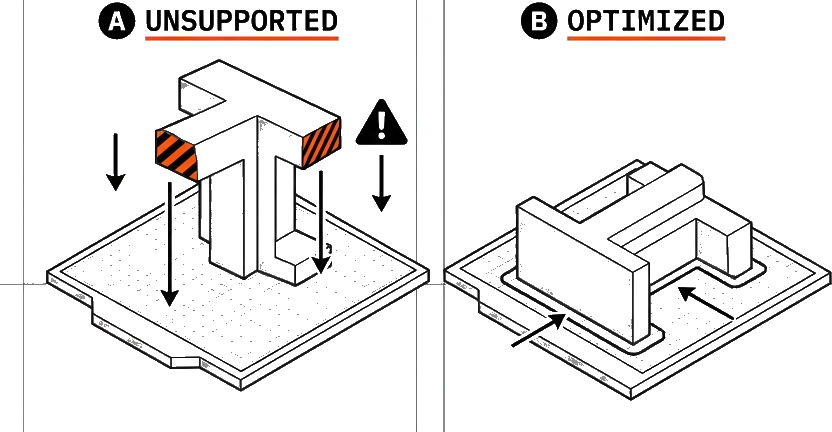
When does a print need supports?
Supports prevent printed material from drooping into air. Our STANDARD settings optimise support generation for reliability and easy removal.
When Supports Are Needed
- • Overhangs steeper than 45° from vertical
- • Bridges longer than 10-15mm
- • Floating geometry with no connection to build plate
Support Types
Normal/Linear: Standard grid pattern. Reliable but can be harder to remove.
Tree Supports: Organic branching structure. Minimal surface contact, ideal for organic shapes.
Snug Supports: Follows part contours closely without overshooting. Our preferred type.
STANDARD Support Approach
Our STANDARD settings enable supports by default. This is intentional—it's better to generate supports you don't need (and disable manually) than to have a print fail because supports were forgotten.
Check these choices against the profile for your actual printer, nozzle and material.
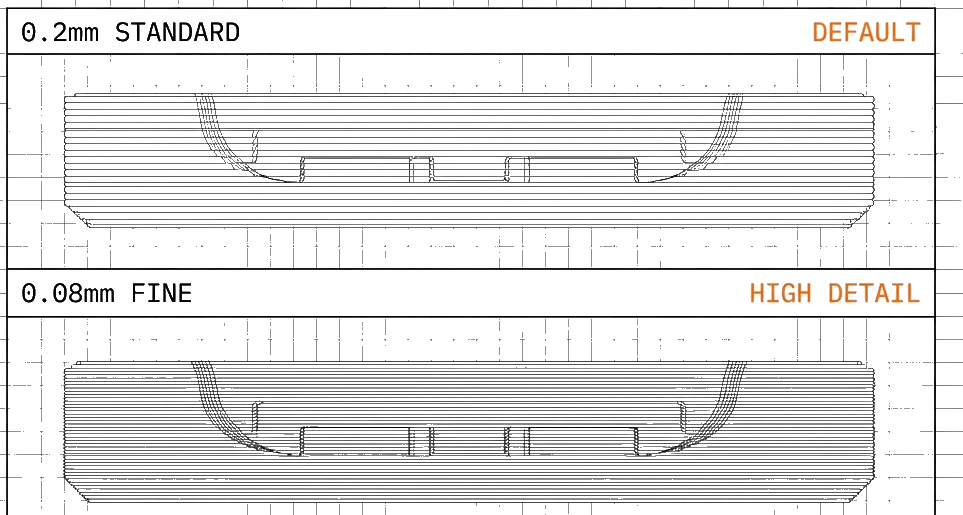
How does layer height change the surface?
Quality optimisation focuses on surface finish and dimensional accuracy. The first layer is particularly critical—it's the foundation for the entire print.
Layer Height
0.12mm: High detail | 0.20mm: Standard | 0.28mm: Fast drafts
Seam Position
Aligned seams hide in corners better than random scatter. For cylindrical parts, consider rear-aligned seams.
First Layer Quality
The first layer determines print success. Our STANDARD settings slow initial layer speeds and use brims for maximum adhesion.
Check these choices against the profile for your actual printer, nozzle and material.
What makes a printed part stronger?
Mechanical strength comes from wall thickness, layer adhesion, and infill pattern selection.
Wall Count
More walls = stronger perimeter. 3-4 walls minimum for functional parts. Walls contribute more to strength than infill in most cases.
Infill Strategy
Beyond 40%, strength gains diminish rapidly. Wall count is often more effective than high infill. For maximum strength, use gyroid or cubic infill patterns.
Check these choices against the profile for your actual printer, nozzle and material.
STANDARD Settings System
The STANDARD Settings System is our validated configuration pack developed through extensive testing. It consists of two core profiles designed to maximise print success rates while maintaining quality.
Standard Setting
Base profile for single-material printing. Optimised for first-layer adhesion and reliable support generation.
Clean Support (Dual Material)
Extended profile for dual-material support interfaces. Produces clean, easily-removable supports on any surface.
1Standard Setting
This is our base configuration for single-material printing. It prioritises first-layer adhesion and reliable support generation over speed. This is the "safe" setting—it may use more material for supports, but it delivers the highest success rate.
Brim Settings
Generates a thin layer of material extending from the part's base to increase bed adhesion surface area.
The width of material extending outward from the part perimeter on the first layer.
Initial Layer Speed
The speed at which the printer moves while depositing the first layer of the print.
The speed for infill extrusion on the first layer specifically.
Support Settings
Generates support structures under overhanging geometry to prevent drooping during printing.
Standard linear support structure. Reliable and predictable behaviour.
The slicer automatically determines where supports are needed based on overhang angles.
Support structures conform closely to the part geometry without extending beyond the overhanging areas.
- • Organic shapes: Switch support type to Tree
- • No overhangs: Disable supports manually after slicing
- • Time-critical: Increase initial layer speed to 15mm/s (slight reliability trade-off)
2Clean Support (Dual Material) Setting
This profile extends the Standard Setting with dual-material support interface configuration. It uses a secondary material for the support-to-part interface that doesn't bond with your primary material, allowing supports to break away cleanly without surface scarring.
Includes all Standard Setting configurations plus:
Interface Material Setup
Assigns a different material to the interface layers between support structures and the printed part.
Interface Configuration
The vertical gap between the top of the support interface and the bottom of the printed part.
The pattern used for the support interface layers. Rectilinear creates straight-line passes.
The gap between interface lines. Zero creates a solid interface layer.
Required Manual Adjustment
Critical: Flushing Volume Adjustment
This setting cannot be saved in the profile and must be set manually for each project.
The amount of filament purged when switching between materials to clear the previous material from the nozzle.
3How to Import & Use
Importing Process Profiles
- 1Obtain a maintained profile for your printer, nozzle and material
- 2Keep a copy and note the source and version
- 3Open Bambu Studio or OrcaSlicer
- 4Navigate to File → Import → Import Config
- 5Select the compatible profile file using the current slicer instructions
- 6The profile will appear in your Process dropdown
Importing Material Profiles
Import only material profiles intended for your setup. Check the selected filament and its processing instructions before slicing.
4Customisation Guide
Important: These settings are a guide, not a mandate. Feel free to modify them to suit your specific requirements. The profiles provide a reliable starting point—adjust as needed based on your materials, printers, and quality requirements.
Saving Custom Profiles
After modifying settings, save as a new profile to preserve your changes. Go to File → Save As Project Config or use the profile dropdown and select "Save As".
Cross-Slicer Compatibility
While our pack is designed for Bambu Studio and OrcaSlicer, the principles apply to any slicer. For PrusaSlicer, Cura, or others:
- Locate equivalent settings (naming may differ)
- Apply the same values manually
- Save as a custom profile for reuse
Learn on your own equipment.
Practise setup, slicing and printing with a trainer.