Evaluation & Troubleshooting
Describe the symptom, check the setup and test one change at a time.
Where should I start when a 3D print fails?
Most 3D printing problems feel random at first. A print fails, something detaches, filament goes everywhere, or the result simply looks wrong.
In reality, nearly all FDM / FFF 3D printing problems fall into a small number of repeatable categories. Once you learn to identify which category you are dealing with, the solution becomes systematic rather than guesswork.
This guide introduces a five-category diagnostic framework used throughout our technical guides. Each category represents a different failure mode in the printing process.
Your goal is not to fix everything at once — your goal is to identify the dominant failure first, solve that, then move on if needed.
Before You Start
For example:
- ▸A poor first layer will cause later warping
- ▸Extrusion problems will create surface defects
- ▸Adhesion issues often look like slicer problems, but aren't
This framework helps you work from the foundation up.
Which failure happened first?
There are only five main problems in FDM 3D printing. Every failed print, mysterious behaviour, and frustrating result maps back to one of these categories. Understanding which one you're dealing with transforms random troubleshooting into systematic problem-solving.
Select "This is my problem" for each issue that applies, then scroll down to see which guides to follow and in what order.
How to Use This System
Identify which category best matches your primary symptom
Open the corresponding guide
Apply the fixes in the order presented
Re-test before moving to another category
What this guide series is designed to do
Each category above links to a dedicated, practical guide that:
- ▸Explains why the problem occurs
- ▸Shows how to identify it
- ▸Provides conservative, repeatable fixes
- ▸Links to deeper material, hardware, or settings guides where relevant
The goal is not hacks or shortcuts.
The goal is predictable, repeatable printing.
Need hands-on help?
Book a session with our technicians for guided diagnostics, training, or complex repairs.
Why will the first layer not stick?
First Layer Doesn't Stick
Why Prints Don't Stick (and How to Fix It)
Quick Summary
If a 3D print does not stick to the build plate, the cause will always fall into one or more of these three areas:
This guide explains why each failure happens, how to identify which category you are dealing with, exactly what to change, plus a worked slicer example using a Bambu Lab P1S.
How Bed Adhesion Actually Works
For filament to stick to a build plate, three things must happen at the same time:
Section 1 — Material
Why material causes adhesion failure
Filament must soften, flow, and "wet" the surface before cooling. If it cannot do this, it will sit on the plate rather than bonding to it.
Common causes
- ▸Moisture in filament
- ▸Incorrect material choice
- ▸Incorrect nozzle temperature
How to recognise a material-related issue
Typical symptoms:
- ▸Filament curls as it exits the nozzle
- ▸First layer looks grainy or inconsistent
- ▸Corners lift despite a clean plate
- ▸Adhesion varies between identical prints
Actions to take
- Start with PLA if you are new
- Assume filament may be wet, even if it is new
- Use manufacturer-recommended temperature ranges
- "Fix" adhesion by lowering temperatures
Section 2 — Printer & Build Plate
Why build plate condition matters
The build plate is the reference surface for the entire print. Automatic levelling systems can compensate for height variation. They cannot compensate for:
- ▸Oils
- ▸Residues
- ▸Surface damage
Why the build plate must be clean
Skin oils and residues form a microscopic barrier. Filament bonds to the contamination instead of the plate — which fails under stress.
- Dish soap + warm water (best for oil removal)
- 100% isopropyl alcohol for maintenance cleaning
- Methylated spirits
- Household cleaners with additives
- Touching the plate after cleaning
Why flatness and surface condition matter
A flat plate ensures:
- ▸Even nozzle distance
- ▸Consistent pressure across the first layer
Damage such as scratches or missing coating can:
- ▸Create dead zones with no adhesion
- ▸Transfer defects to the print underside
- ▸Cause random failures that look like "settings issues"
Why levelling matters
Levelling ensures the nozzle is:
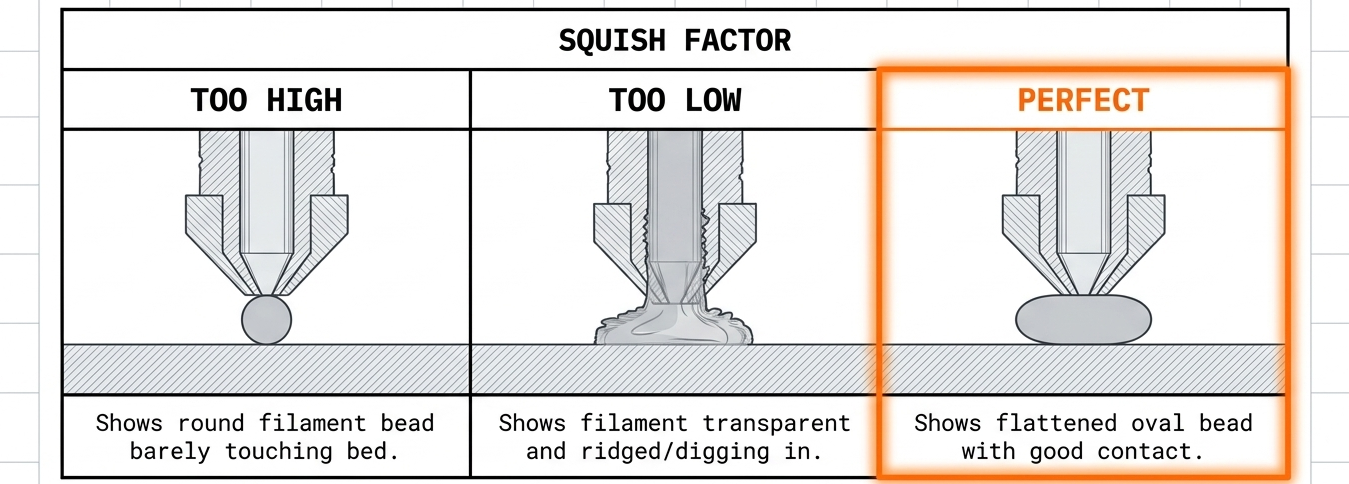
- ▸Close enough to press filament into the surface
- ▸Not so close that flow is restricted
Section 3 — Slicer Settings
Why slicer settings break adhesion
Manufacturers optimise profiles for speed. Speed is fine after the first layer is secure.
The first layer must:
- ▸Print slowly
- ▸Maintain pressure
- ▸Stay bonded for the entire print duration
Worked example — conservative adhesion settings (Bambu Lab P1S)
These settings are intentionally slow and safe. They prioritise reliability over speed and are suitable as a baseline.
Confirm printer and plate
Select the correct printer (top left)
Confirm:
- ▸Nozzle size
- ▸Build plate type
Select a generic filament profile
Go to Project Filaments
Add filament → Select Generic → PLA
This removes brand-specific variables.
Base preset
This is a stable starting point.
Slow the first layer (critical)
Go to Process → Speed and set:
Why this matters:
- ▸Slower speed increases contact time
- ▸Molten plastic can properly wet the surface
- ▸Adhesion strength increases significantly
Increase surface area with a brim
Go to Others → Bed Adhesion:
Why this matters:
- ▸More surface area = more adhesion force
- ▸Early visual confirmation of adhesion quality
Enable supports conservatively
Go to Support:
Why this matters:
- ▸Prevents early unsupported layers
- ▸Reduces stress on the first layer
Save as a "safe" preset
Save the preset clearly, for example:
This becomes your known-good fallback.
Why these settings work
- ▸First layer prints slowly and evenly
- ▸Pressure is maintained across the plate
- ▸Surface wetting is maximised
- ▸Later layers can print faster because the foundation holds
Once adhesion is reliable, you can increase speeds.
Never start there.
Section 4 — Troubleshooting Order
If you have applied all the above changes and still experience adhesion failures, work through this checklist in order:
A final note
Most adhesion problems are not advanced problems. They are fundamentals being violated — often unintentionally.
Clean surfaces, dry material, slow first layers.
Observe the result before continuing.
Related Guides
Learn on your own equipment.
Practise setup, slicing and printing with a trainer.